

 44
44
Submitting a New Records Request
-
Create a New Request:
-
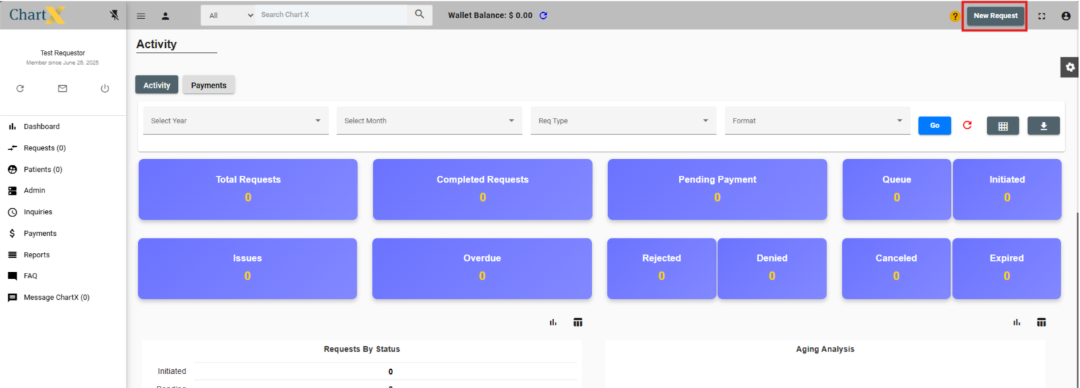
From the dashboard, click “New Request” (top right corner).
-
Enter Patient Information:
-
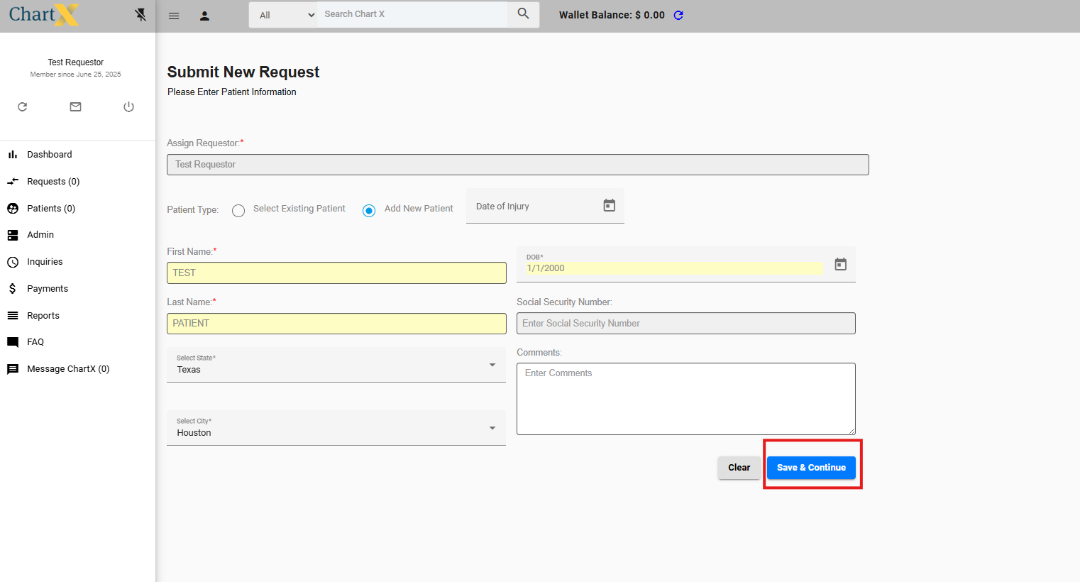
Click “Add New Patient.”
-
Fill out: First Name, Last Name, State, City, Date of Birth (required).
-
Optional: Social Security Number, Comments, Date of Injury.
-
Click “Save and Continue.”
-
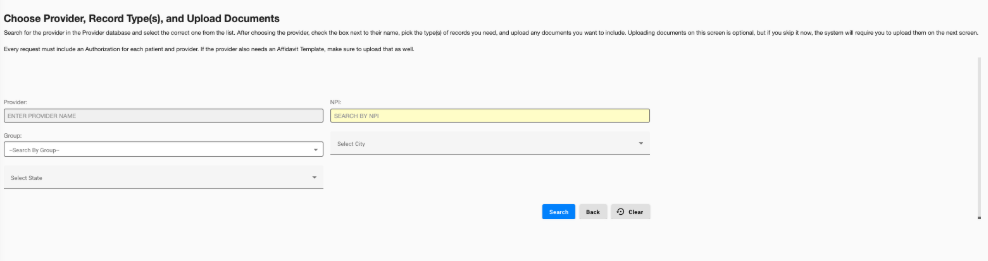
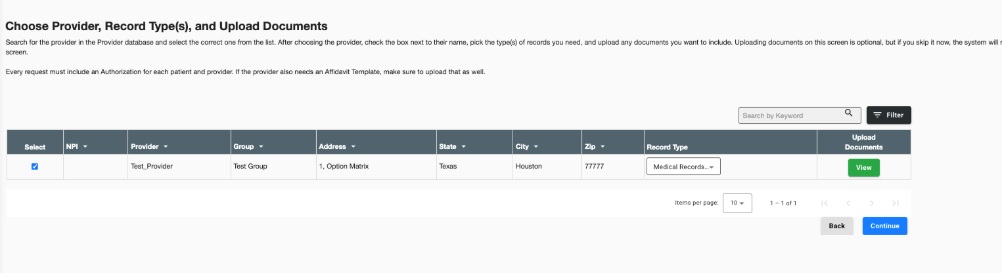
Search for the Provider:
-
Enter known information or to see all providers in the system, leave blank.
-
Click “Search.”
-
Select one or more facilities by clicking “Select” next to each name.
-
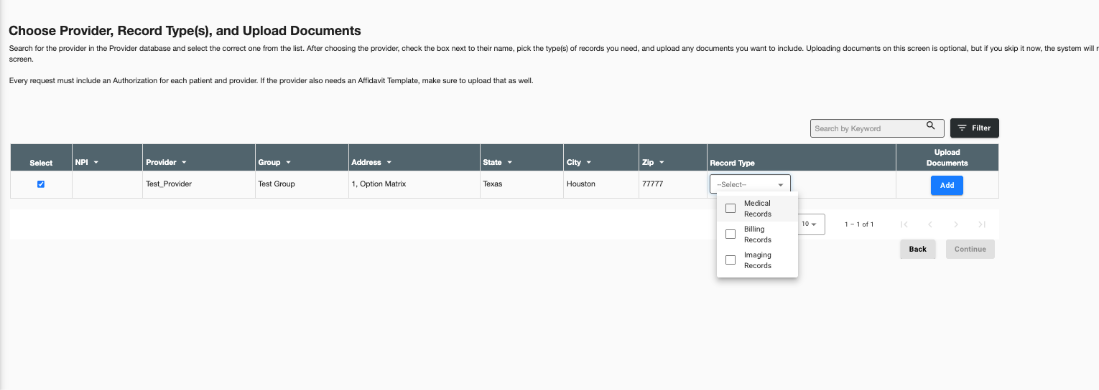
Choose Records Type:
-
Pick one or more: Medical, Billing, and/or Imaging records.
-
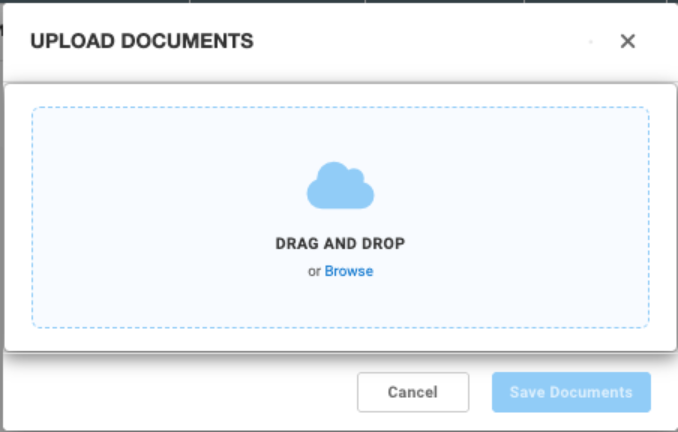
Document Upload
-
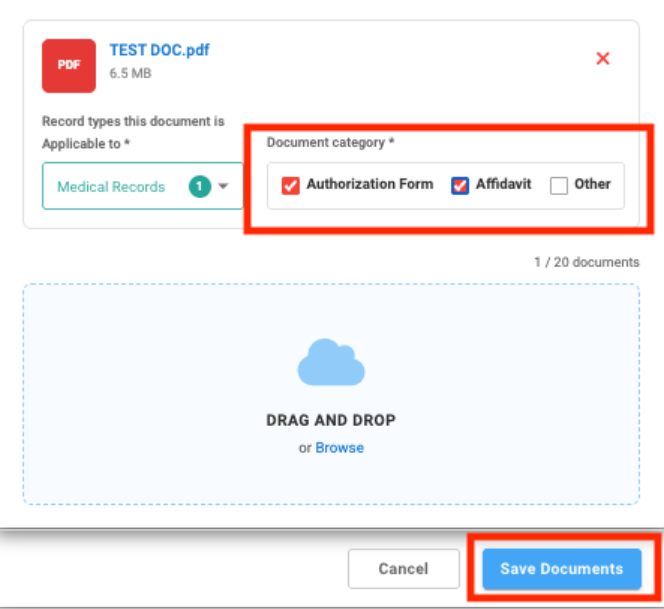
Upload a document or multiple documents. Documents examples are an authorization form, affidavit template, DWQ, etc
-
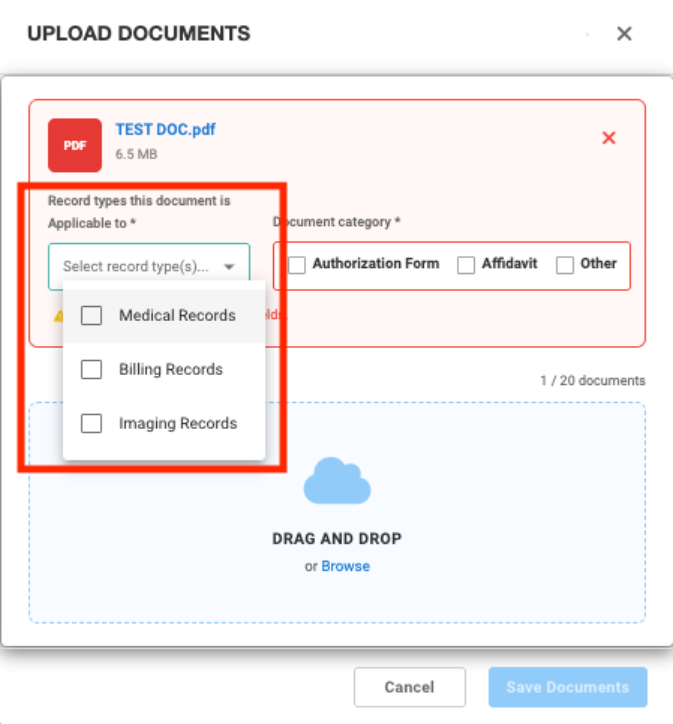
For each document that is uploaded, select which record type it pertains to.
-
For each document that is uploaded, select a document category. Then click Save Documents
-
Select Record Optons:
-
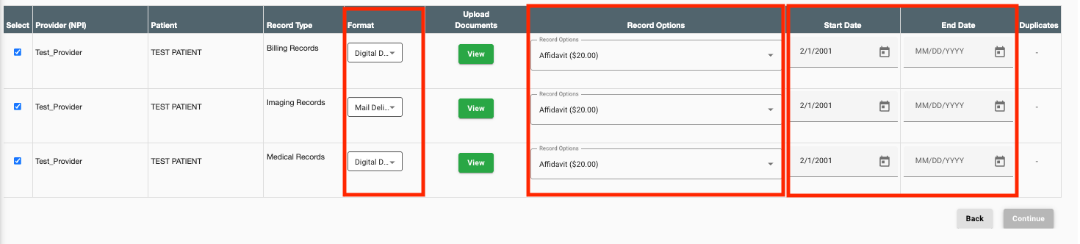
Choose Digital Download or Mail Delivery (Imaging is Mail only).
-
Optional: Choose Expedite (if available), uncheck Affidavit if not needed.
-
Add Start Date (auto-fills others), and optional End Date (defaults to today if blank).
-
Review & Submit:
-
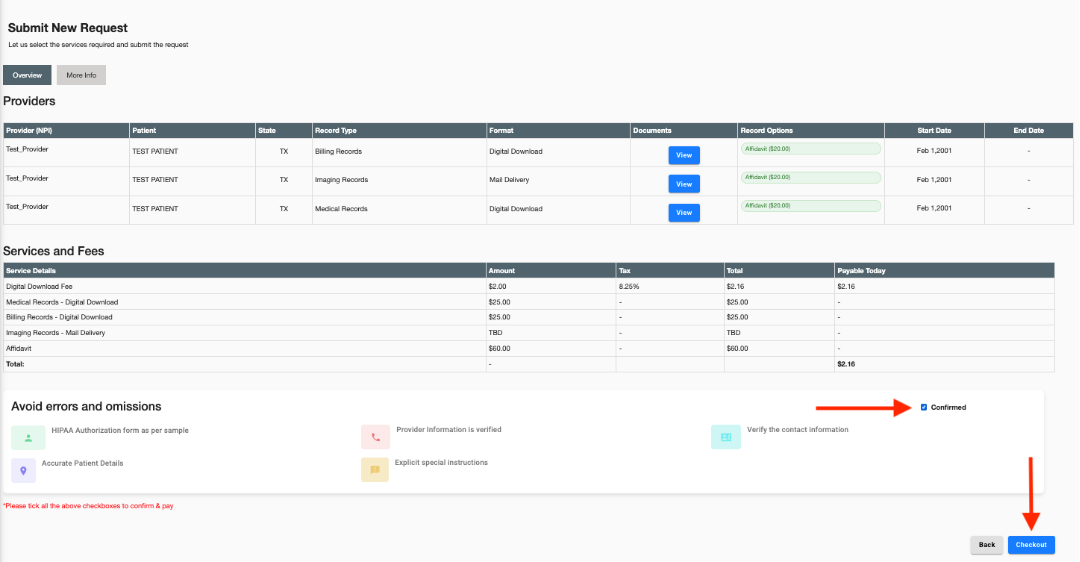
Confirm that all information is correct.
-
Check the confirmation box, then click “Checkout.”
-
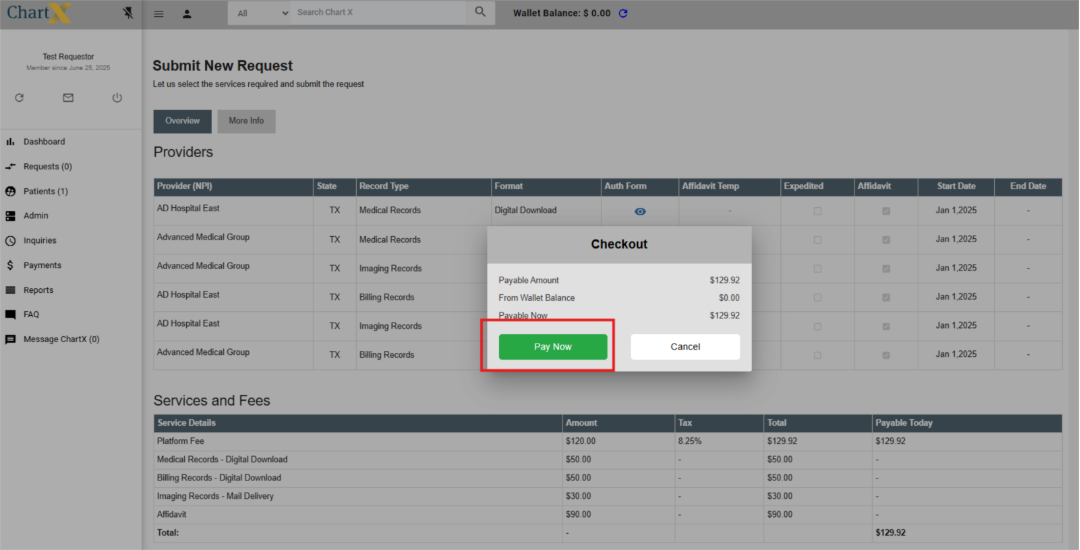
Payment:
-
The platform fee is paid upfront. Record fees are billed later.
-
Click “Pay Now” to access the secure payment site.
-
Pay with a credit card.