

 6
6
Using the filter in ChartX can make finding your request faster. To use the filter click the Requests tab on the lefthand side of the screen.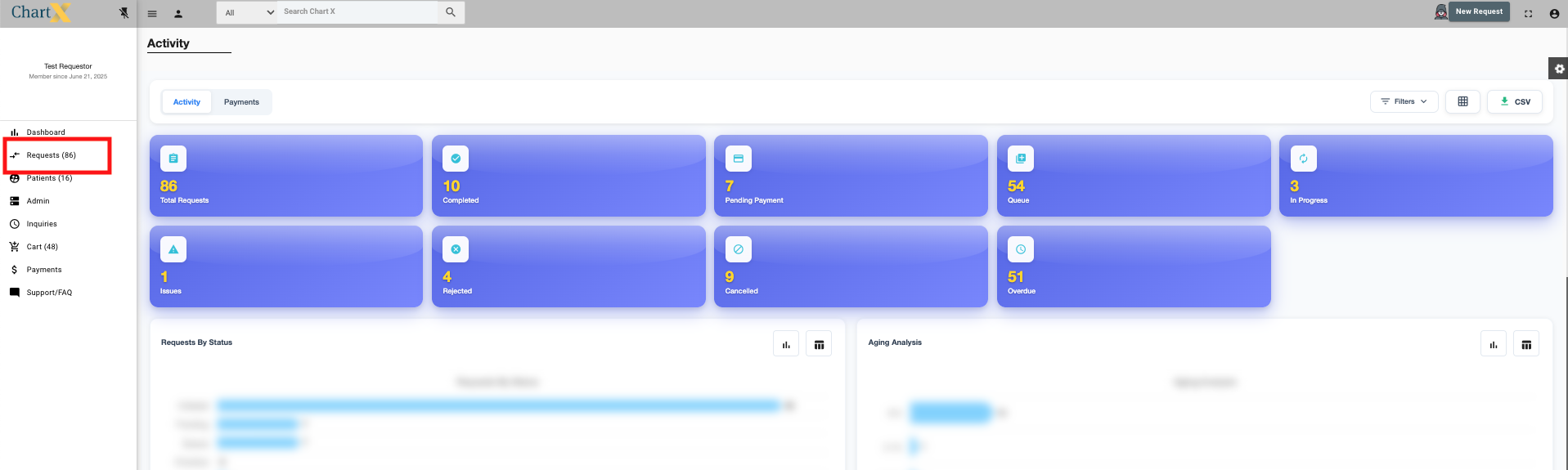
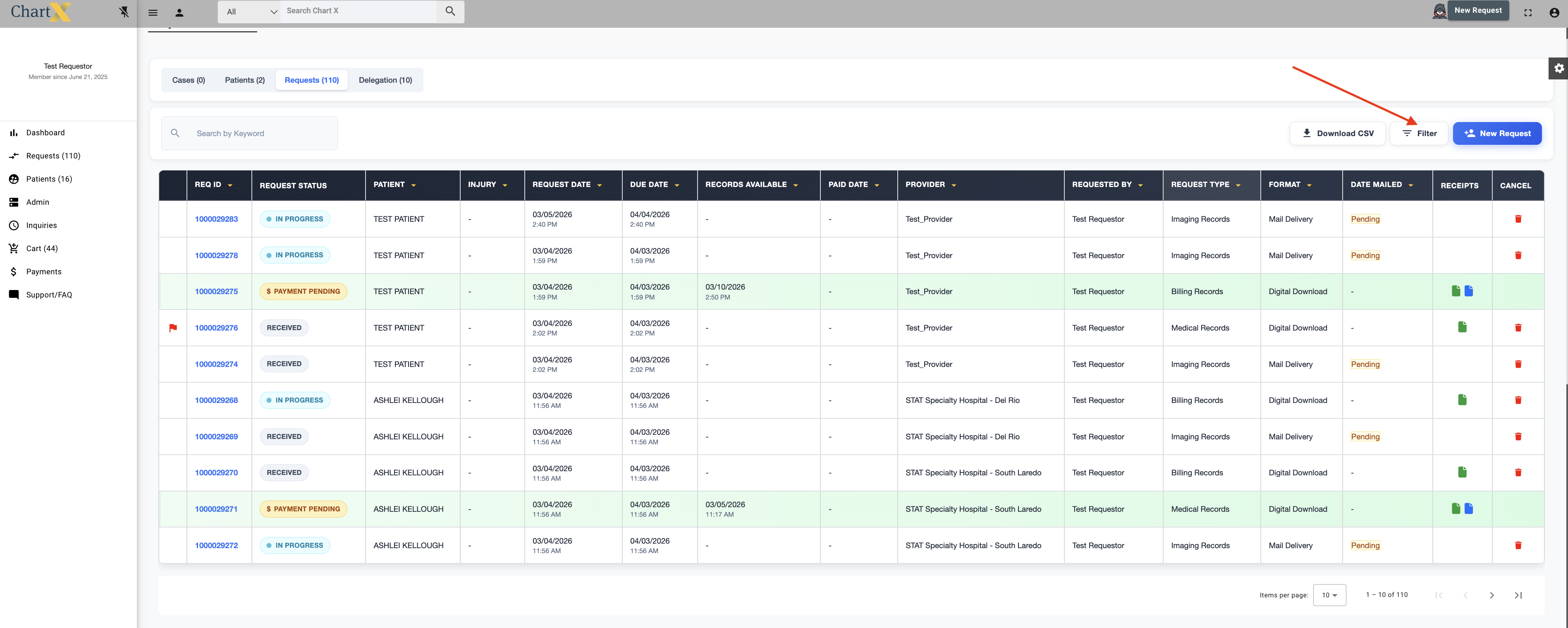
Click Filter.
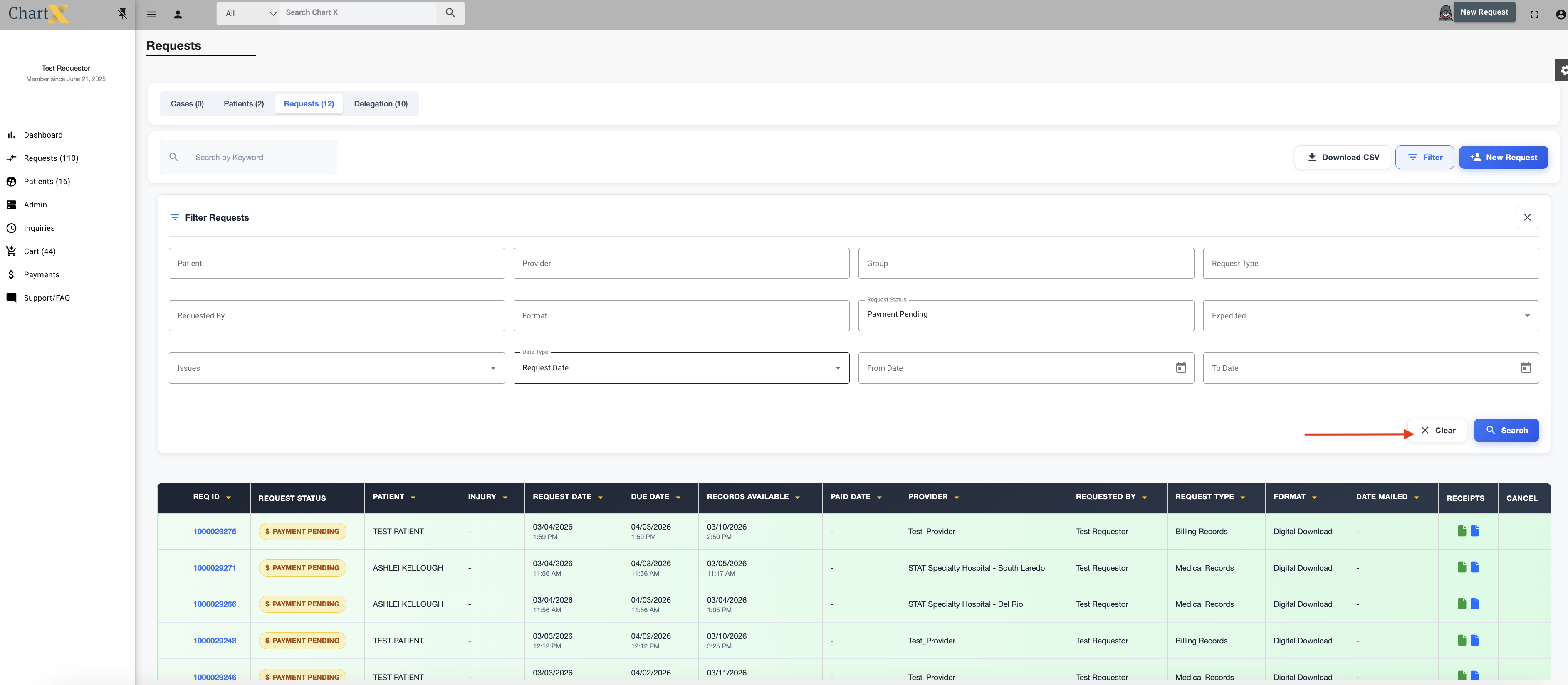
Once the filter has opened you are able to search by the following fields: Patient Name, Provider Name, Group Name, Request Type ( Medical, Billing, Imaging), Requested By Name, Format (Digital Download, Mail Delivery), Payment Status, Request Status, Expedited, Issues, and Request Date.
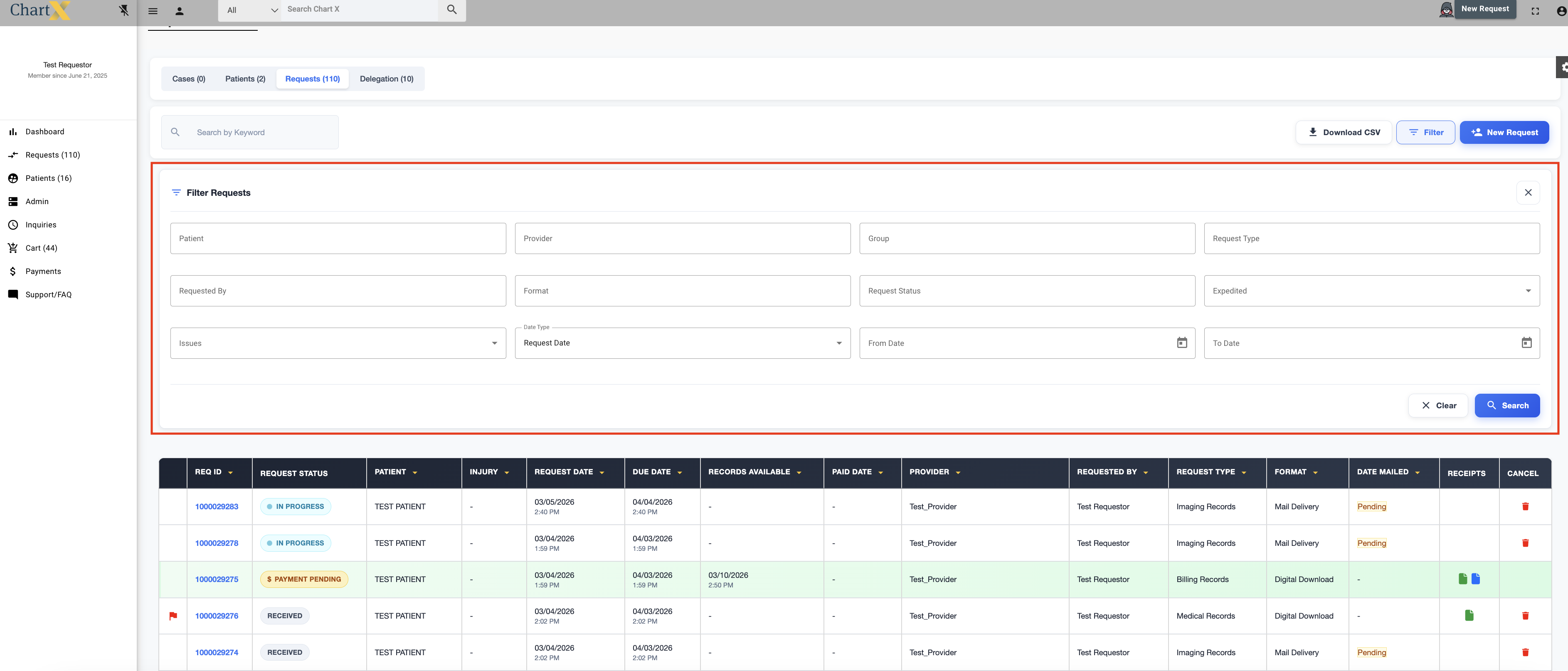
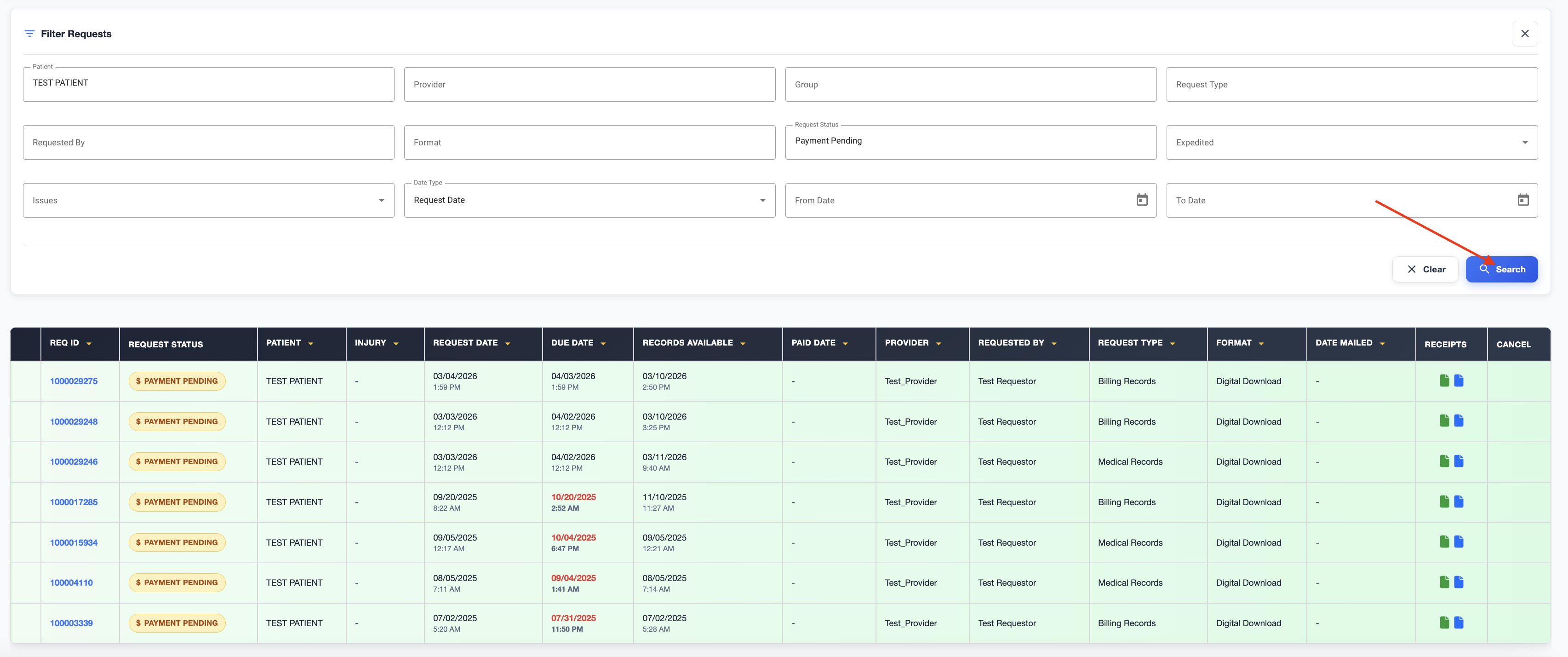
After selecting your search criteria, click Search.
To start a new search, click Clear.
For example:
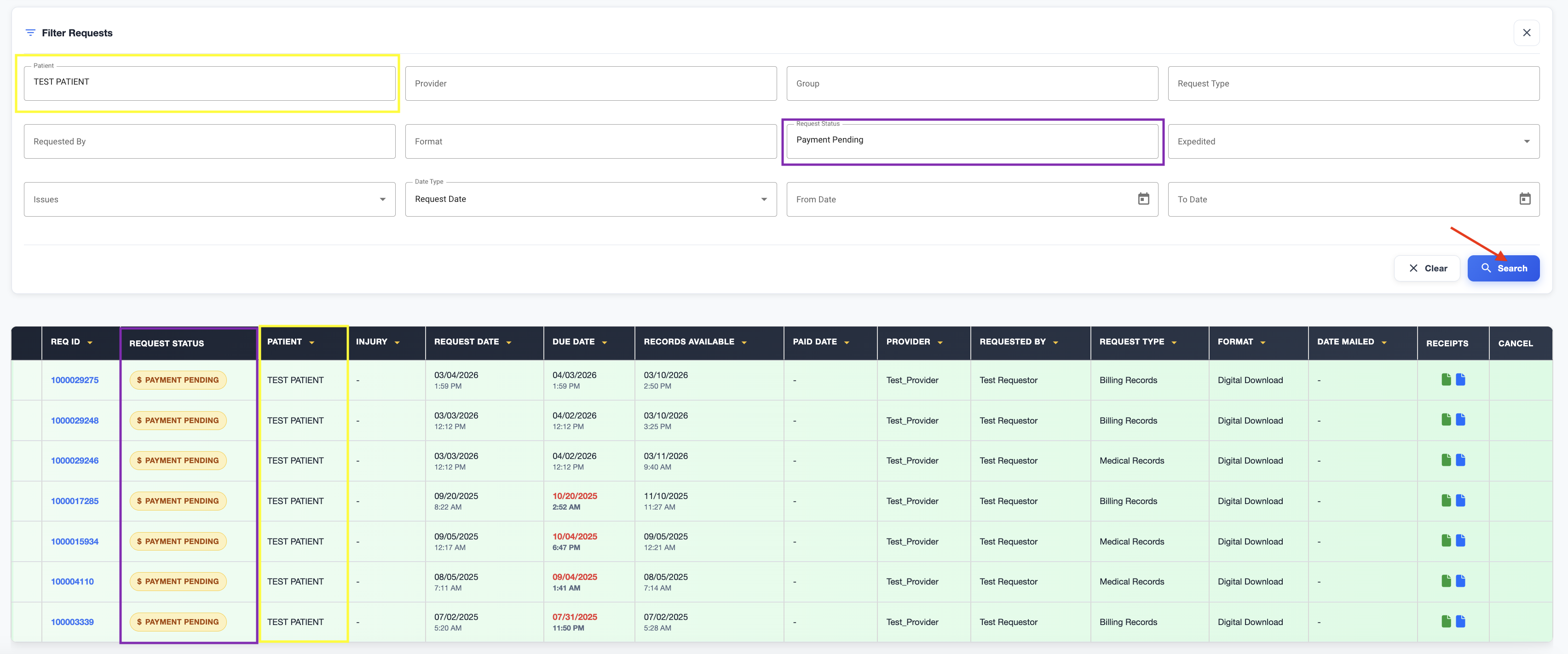
If you were wanting to see all of your request that had records ready for download and waiting for a payment for Test Patient, you would open the filter, select Payment Pending from the Request Status and TEST PATIENT from the Patient drop down menu. Then click Search.