
Ordering an Affidavit

Mar 25, 2026
 20
20
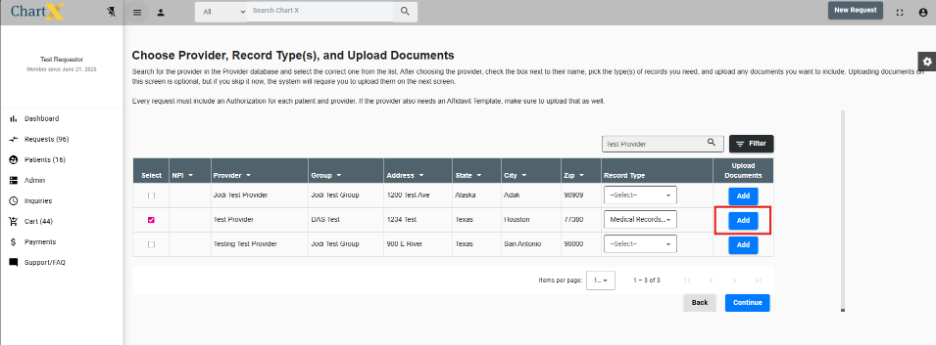
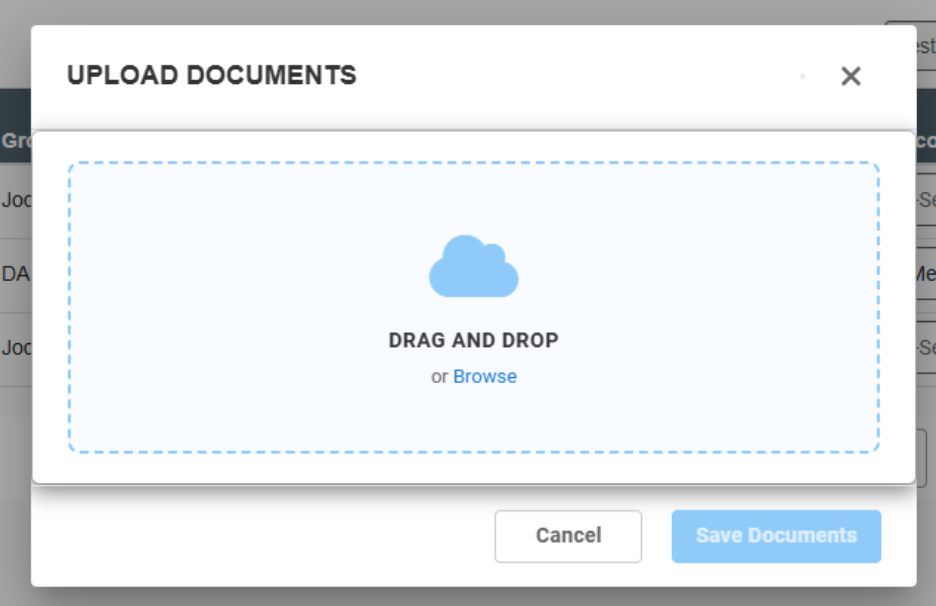
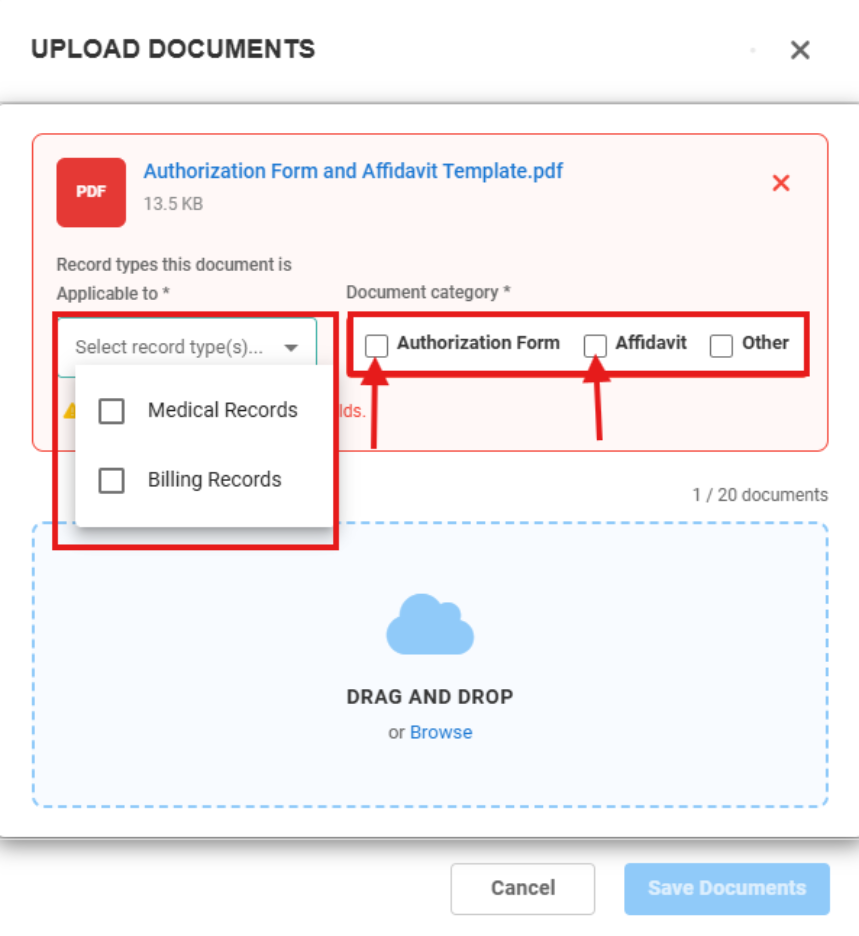
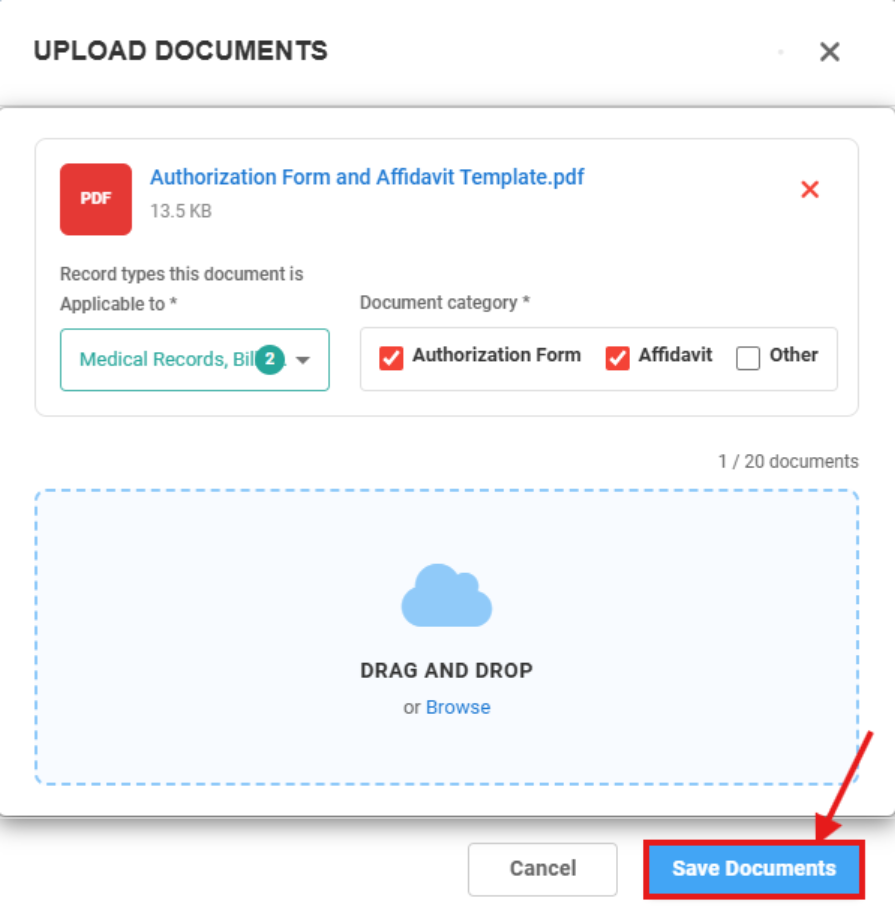
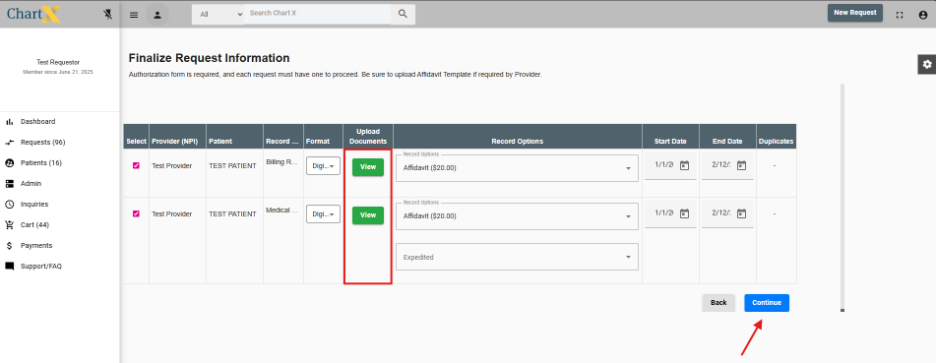
After entering your patient’s information or selecting an existing patient for the new record request, you will be asked to select the provider. Once you choose the facility you are requesting records from, make sure to select the appropriate record type(s). Next, go to the Upload Document column and click Add. From there, browse your files and upload the necessary documents. To continue, you must indicate whether the uploaded file is an authorization form, affidavit, other or a combination. Also confirm that each uploaded document is associated with the correct record type. Once you select Save Documents and Continue, you will be able to view all uploaded documents along with any fees associated with the affidavit, if applicable.