
Resolving a Rejected Request

Mar 11, 2026
 62
62
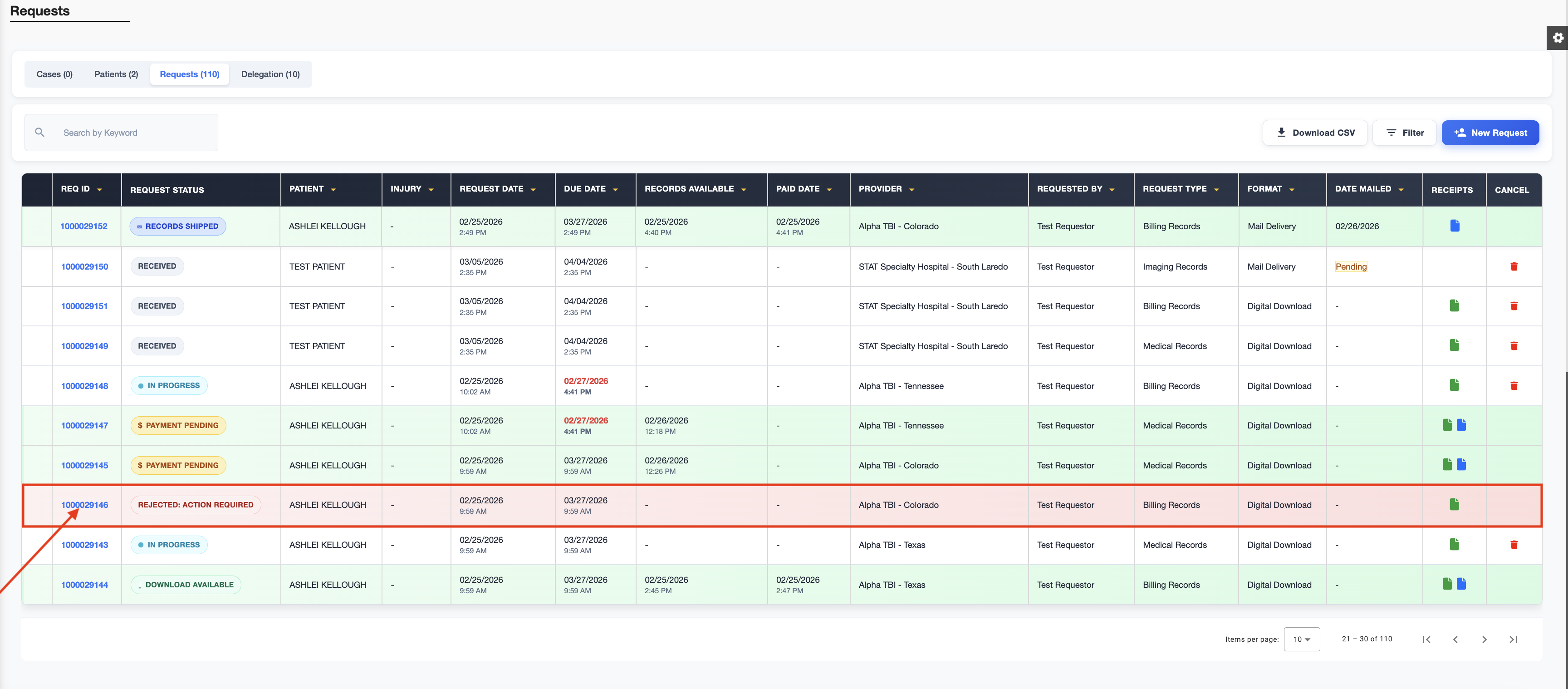
Log in and navigate to the Requests page. Any rejected requests will be highlighted in red. Click the Request ID to view the rejection reason.
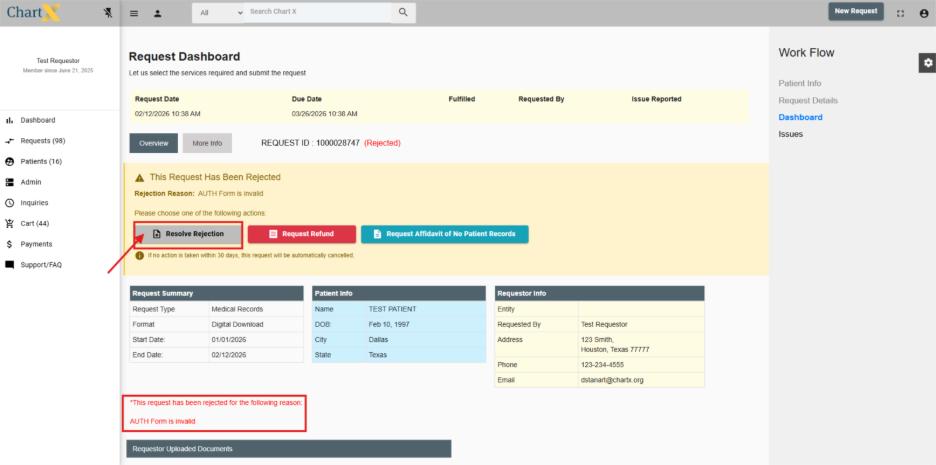
Click Resolve Rejection to upload a missing documents or correct any necessary details.
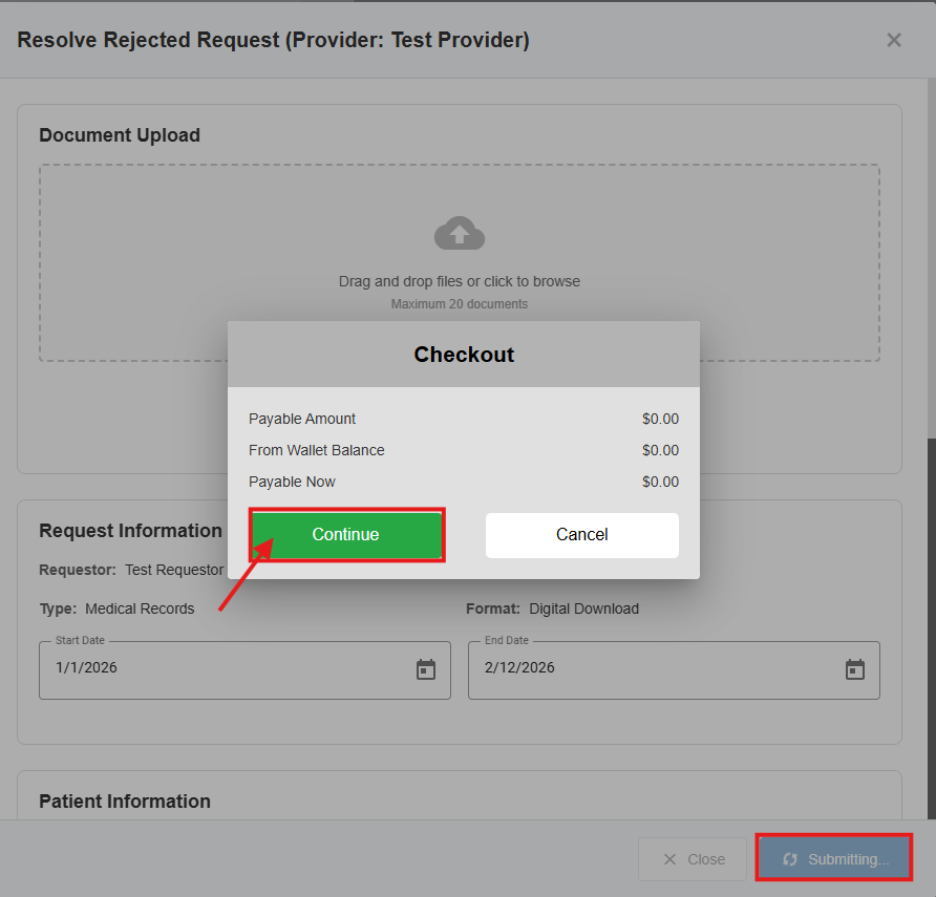
At the bottom of the pop‑up window, you may also add a message to the provider to explain the updates you made. After clicking Submit & Resolve, select Continue—no payment is required because the platform fee was already paid upfront. Your request will then be resubmitted.