

Submitting a New Records Request
-
Create a New Request:
-
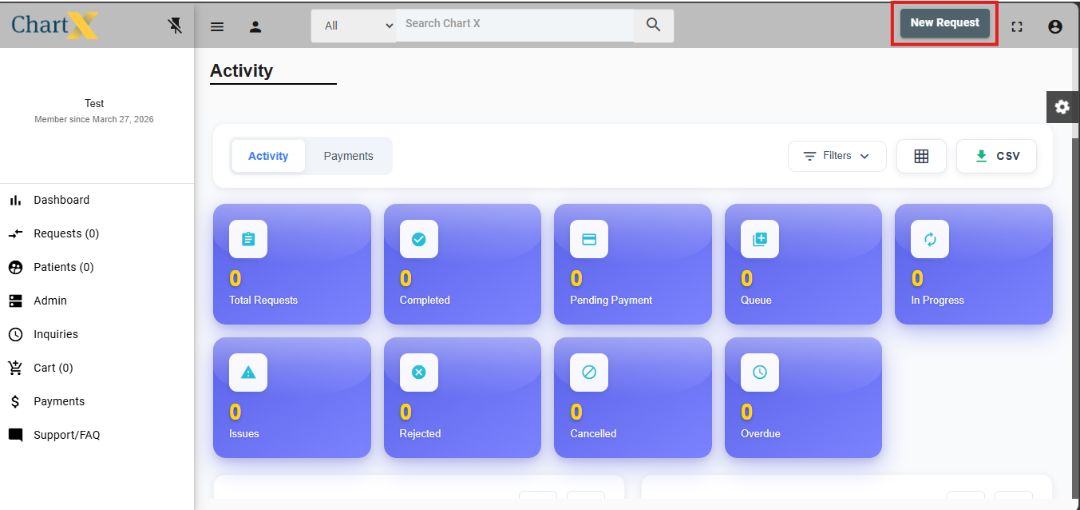
From the dashboard, click “New Request” (top right corner).
-
Enter Patient Information:
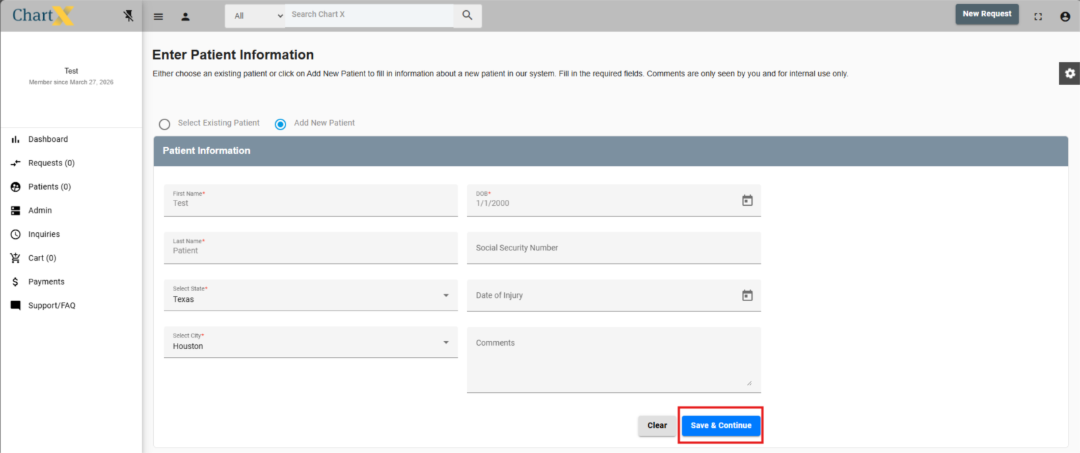
- Click “Add New Patient.”
- Fill out: First Name, Last Name, State, City, Date of Birth (required).
- Optional: Social Security Number, Comments, Date of Injury.
- Click “Save and Continue.”
-
Search for the Provider:
-
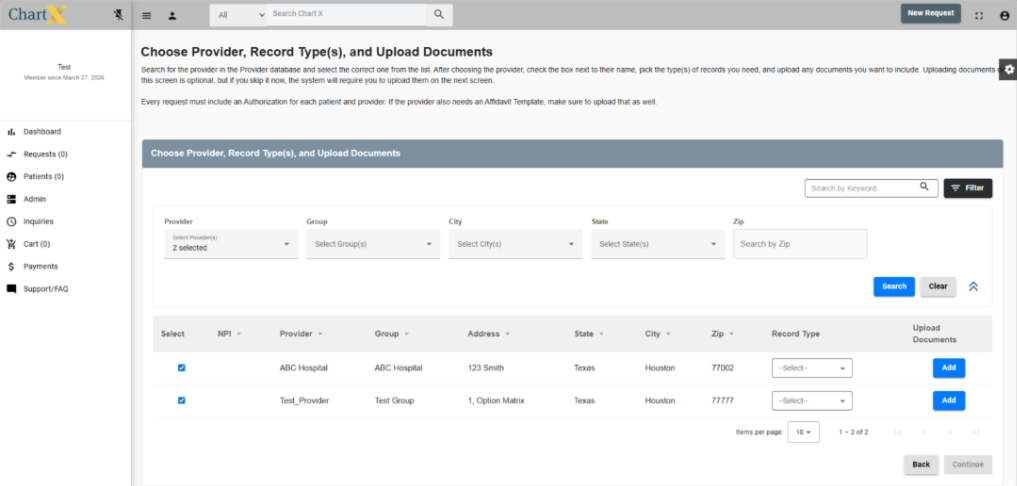
Use the filter to search for the provider needed.
-
Click “Search.”
-
Select one or more facilities by clicking “Select” next to each provider.
NOTE: You can make several requests for one patient at the same time. Be sure the check box is selected next to the providers needed.
-
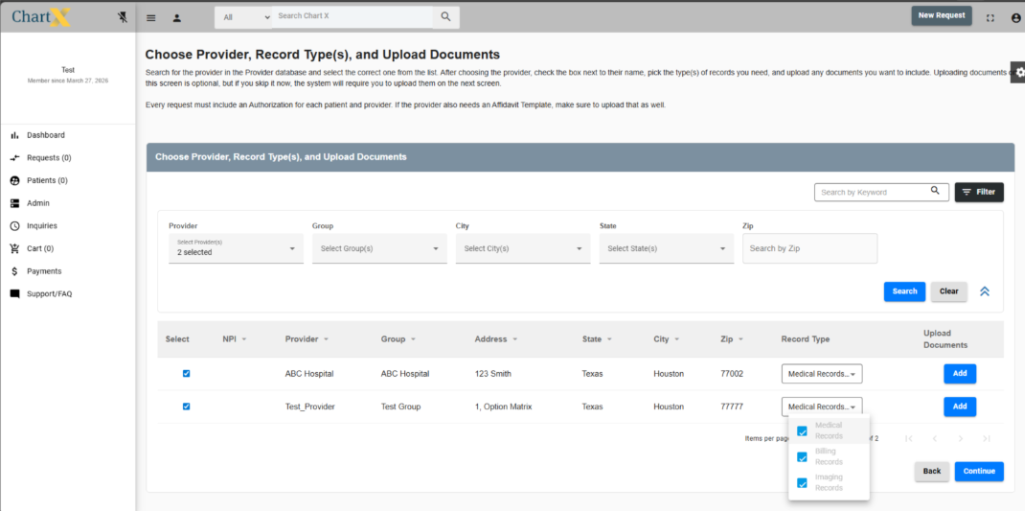
Choose Records Type:
-
Pick one or more: Medical, Billing, and/or Imaging records.
-
Upload Authorization Forms:
-
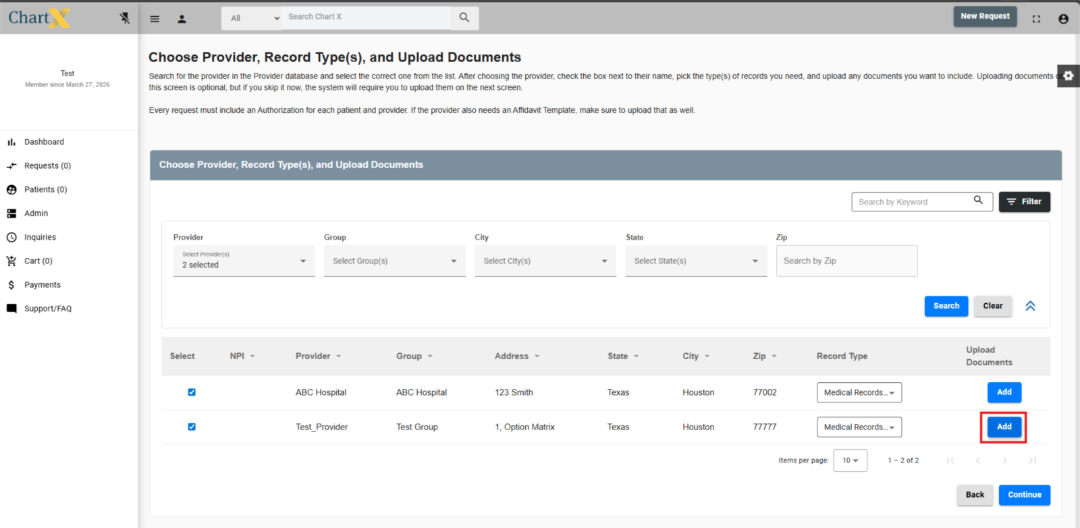
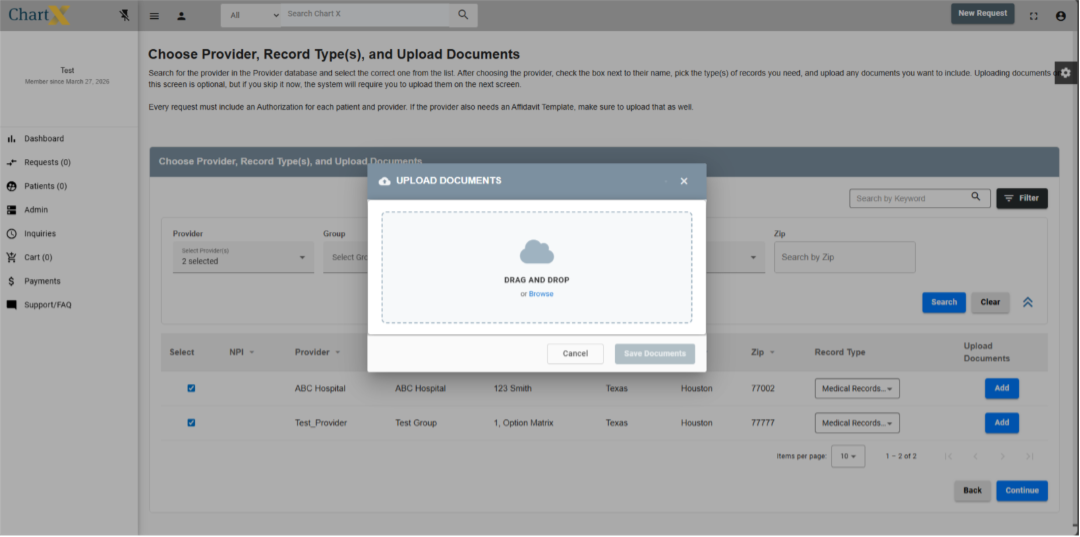
Click “Add” under the Upload Documents section.
-
There will be a “Saved” message once it is uploaded.
-
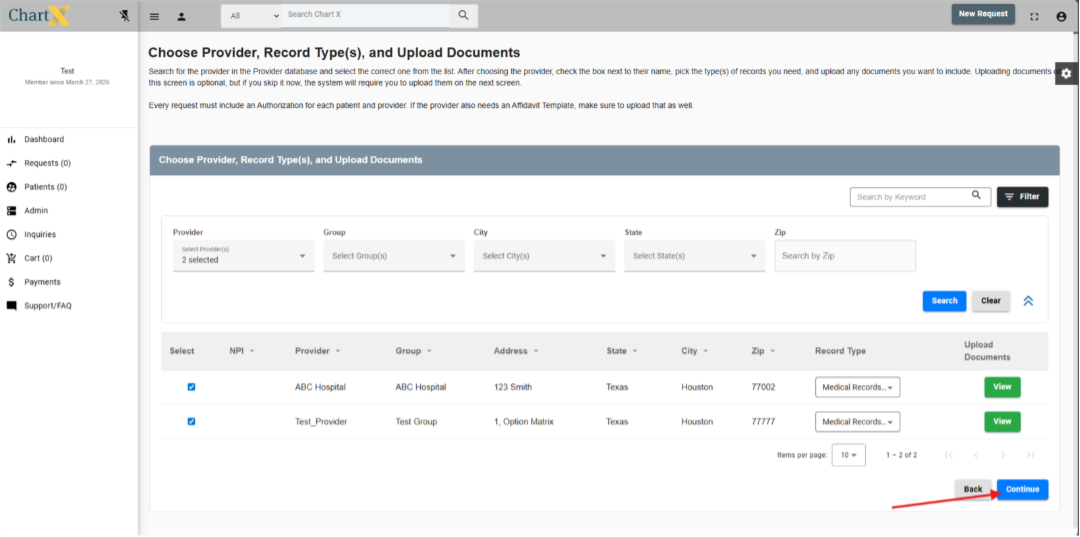
Need to make a change? Click on the View button and make changes you need there.
-
Once completed, click on the continue button on the bottom right to move to the next screen.
-
Select Delivery Format:
-
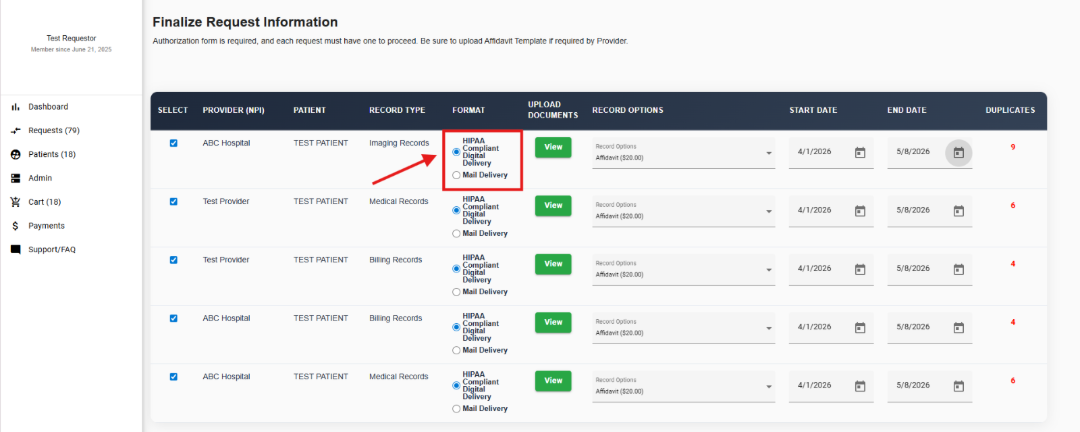
Choose Digital Download or Mail Delivery.
-
Add all Record Options required for each individual request. Affidavit is auto selected.
-
Add Start Date (auto-fills others), and optional End Date (defaults to today if blank).
-
Review & Submit:
-
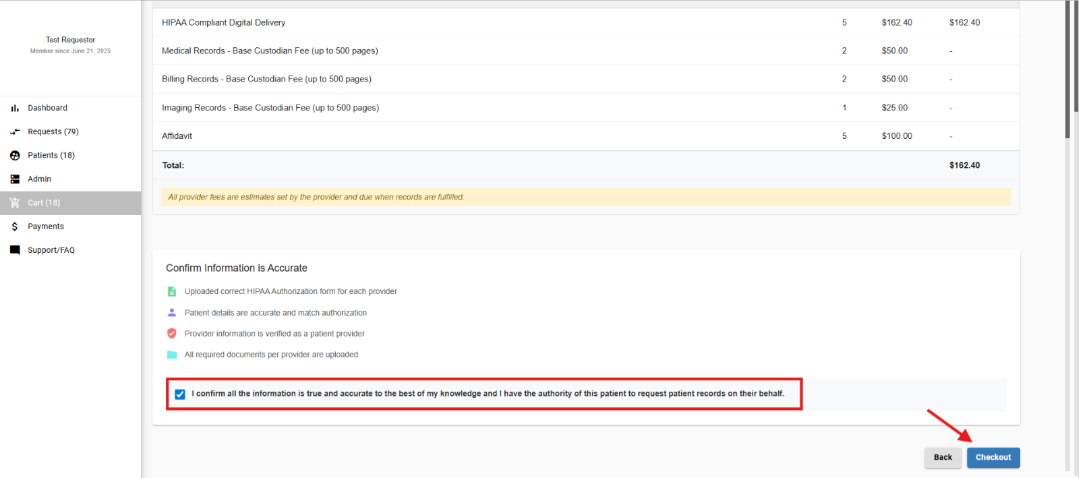
Confirm that all information is correct.
-
Check the confirmation box, then click “Checkout.”
-
Payment:
-
The HIPAA Compliant Digital Delivery amount is initially required to complete your request. Record fees are billed once records are made available by the provider.
-
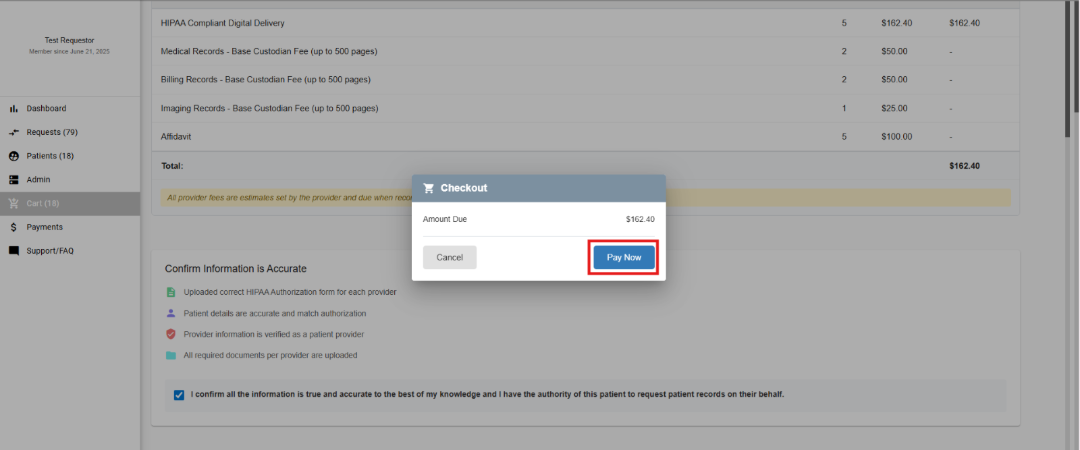
Click “Pay Now” to access the secure payment site.
-
Pay with a credit/debit card.