
How do I view and download my records once they are available?

May 04, 2026
1177

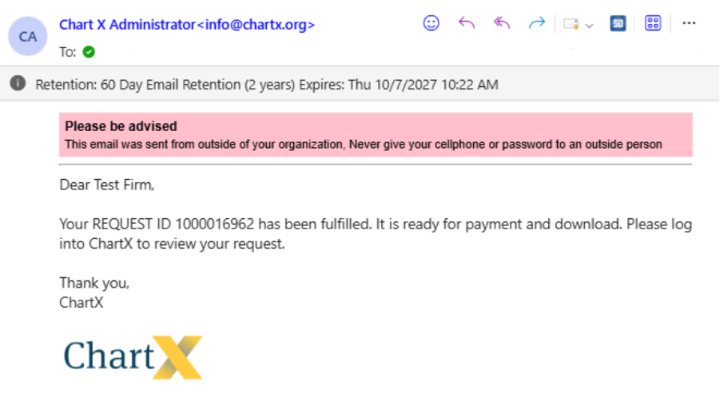
You’ll receive an email when your request is ready. In the portal, fulfilled requests appear in green.
Click the REQ ID.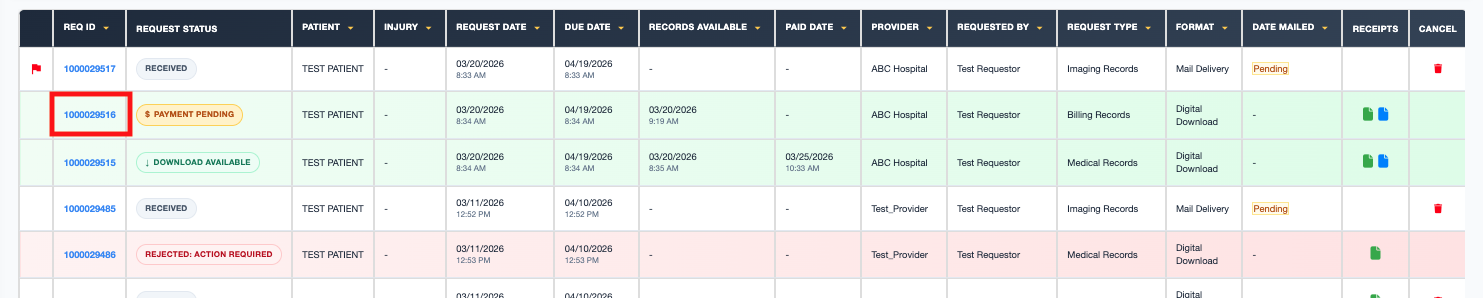
Complete payment.
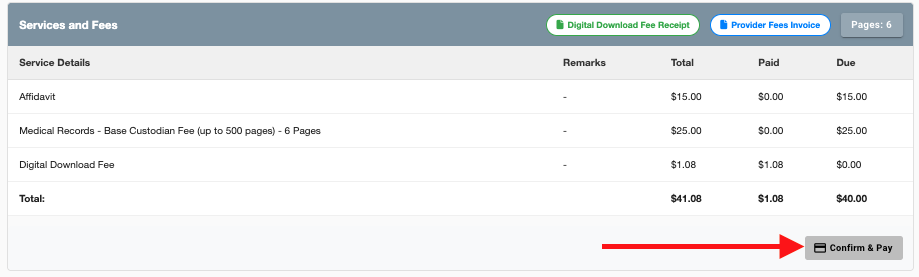
Once you have paid, the Request Status will change to Download Available.
Click on the REQ ID to reopen the request.
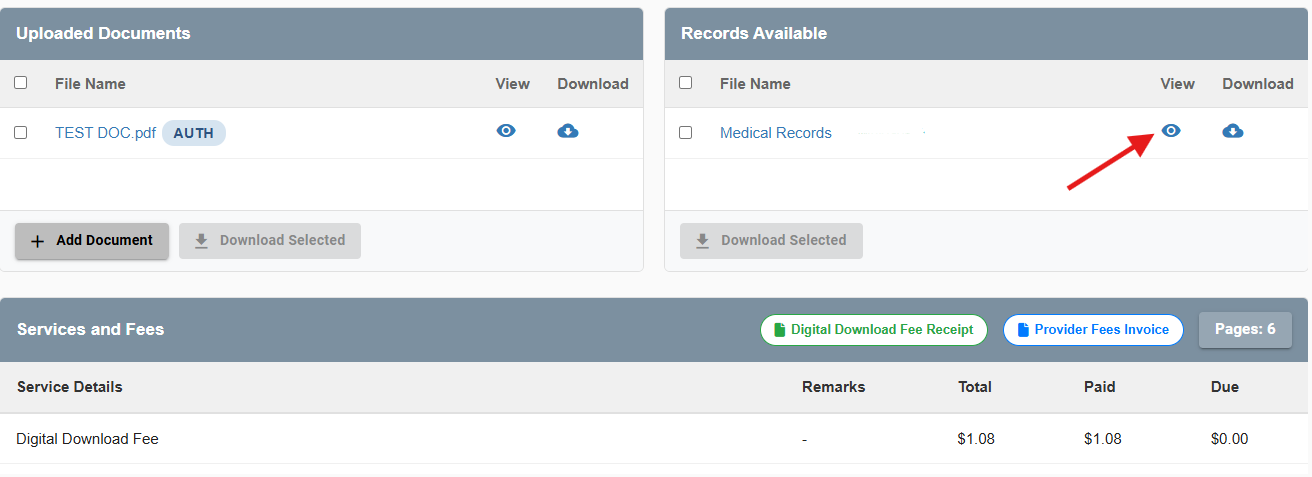
You can click View to review the submitted documents in a new tab. This allows you to view the records without downloading them to your computer.
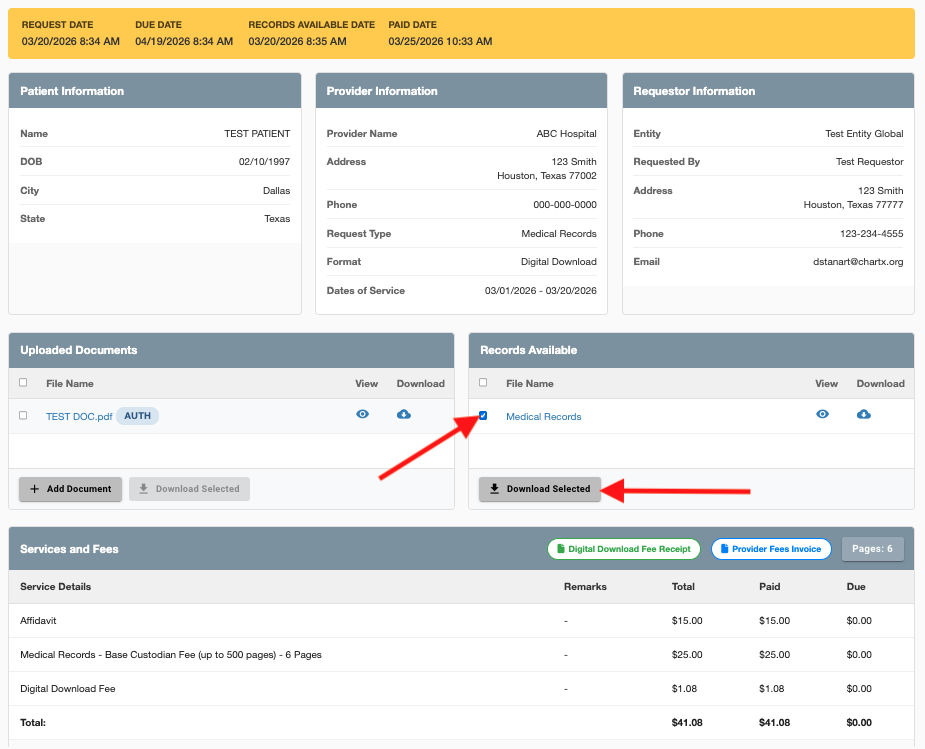
To download the records, select the records you would like to download by checking the box next to each title, then click Download Selected.